

Splashscreen
In this lab we’ll be implementing a basic splashscreen functionality in a Tauri app. Doing so is quite straight forward, a splashscreen is effectively just a matter of creating a new window that displays some contents during the period your app is doing some heavy setup related tasks and then closing it when setting up is done.
Prerequisites
Section titled “Prerequisites”Install Dependencies and Run the Project
Section titled “Install Dependencies and Run the Project”Before you start developing any project it’s important to build and run the initial template, just to validate your setup is working as intended.
pnpm install --no-frozen-lockfileThen build and run the app to see the scaffold working:
pnpm tauri dev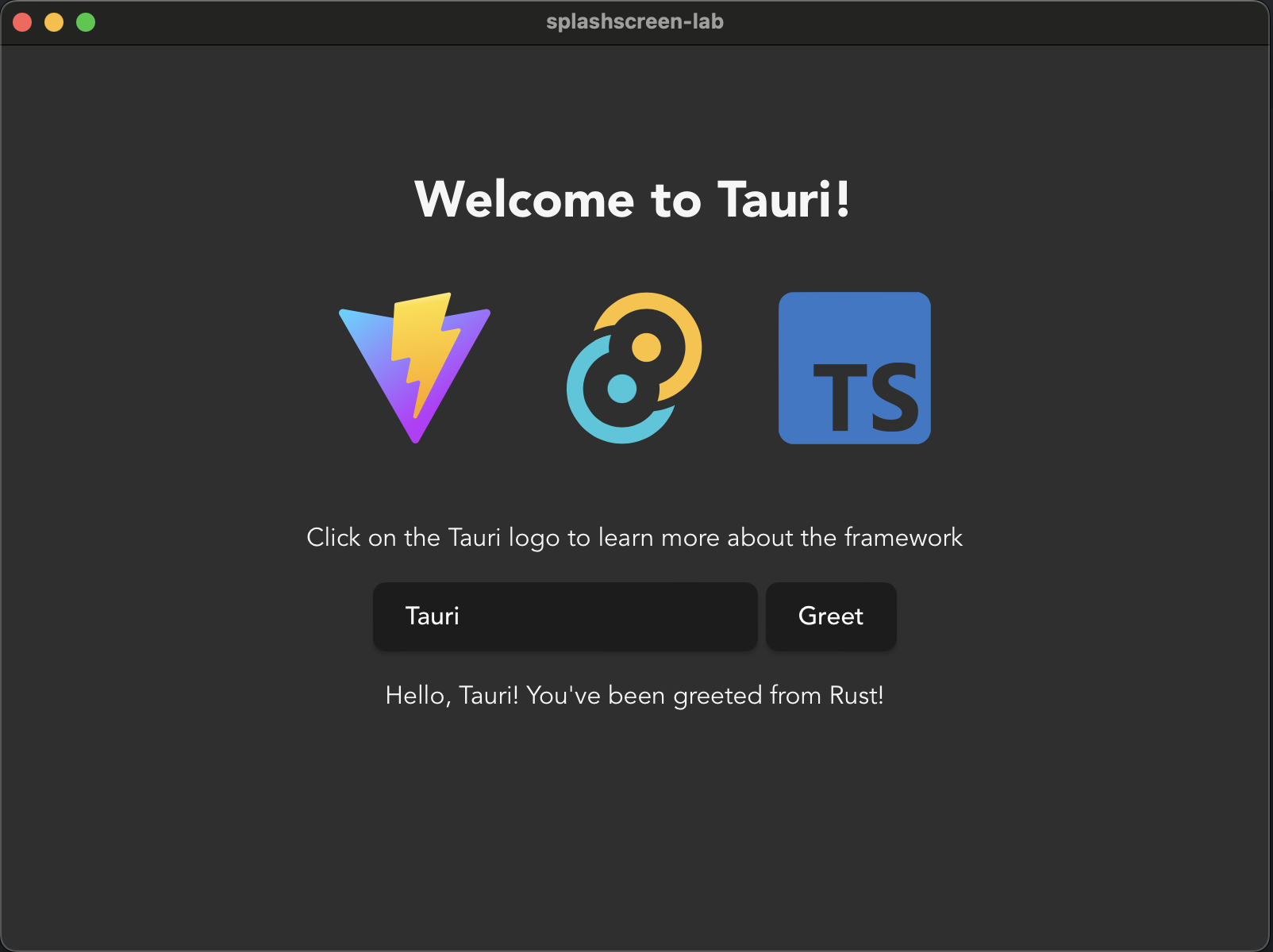
Register New Windows in tauri.conf.json
Section titled “Register New Windows in tauri.conf.json”The easiest way of adding new windows is by adding them directly to tauri.conf.json. You can also create them dynamically at startup,
but for the sake of simplicity lets just register them instead. Make sure you have a window with the label main that’s being created as a hidden window and a window with the label splashscreen that’s created as being shown directly. You can leave all other options as their defaults, or tweak them based on preference.
"windows": [ { "title": "tatu-app", "label": "main", "width": 800, "height": 600 "height": 600, "visible": false }, { "title": "tatu-app", "label": "splashscreen", "url": "/splashscreen" }],"security": {Create a New Page to Host Your Splashscreen
Section titled “Create a New Page to Host Your Splashscreen”Before you begin you’ll need to have some content to show. How you develop new pages depend on your chosen framework,
most have the concept of a “router” that handles page navigation which should work just like normal in Tauri, in which case
you just create a new splashscreen page. Or as we’re going to be doing here, create a new splashscreen.html file to host the contents.
What’s important here is that you can navigate to a /splashscreen URL and be shown the contents you want for your splashscreen.
The dev server picks the new page up on its own, but vite build only emits the pages it’s told about, so the splashscreen
also needs to be registered in vite.config.ts. Without it the production app would show an empty splashscreen window.
Try running the app again after this step!
<!doctype html><html lang="en"> <head> <meta charset="UTF-8" /> <link rel="stylesheet" href="/src/styles.css" /> <meta name="viewport" content="width=device-width, initial-scale=1.0" /> <title>Tauri App</title> </head> <body> <div class="container"> <h1>Tauri used Splash!</h1> <div class="row"> <h5>It was super effective!</h5> </div> </div> </body></html>//// 1. prevent Vite from obscuring rust errorsclearScreen: false,// list both pages so `vite build` emits the splashscreen alongside the app;// without this only index.html reaches dist/ and the production splashscreen// window would load an empty pagebuild: { rollupOptions: { input: ["index.html", "splashscreen.html"], },},// 2. tauri expects a fixed port, fail if that port is not availableserver: { port: 1420,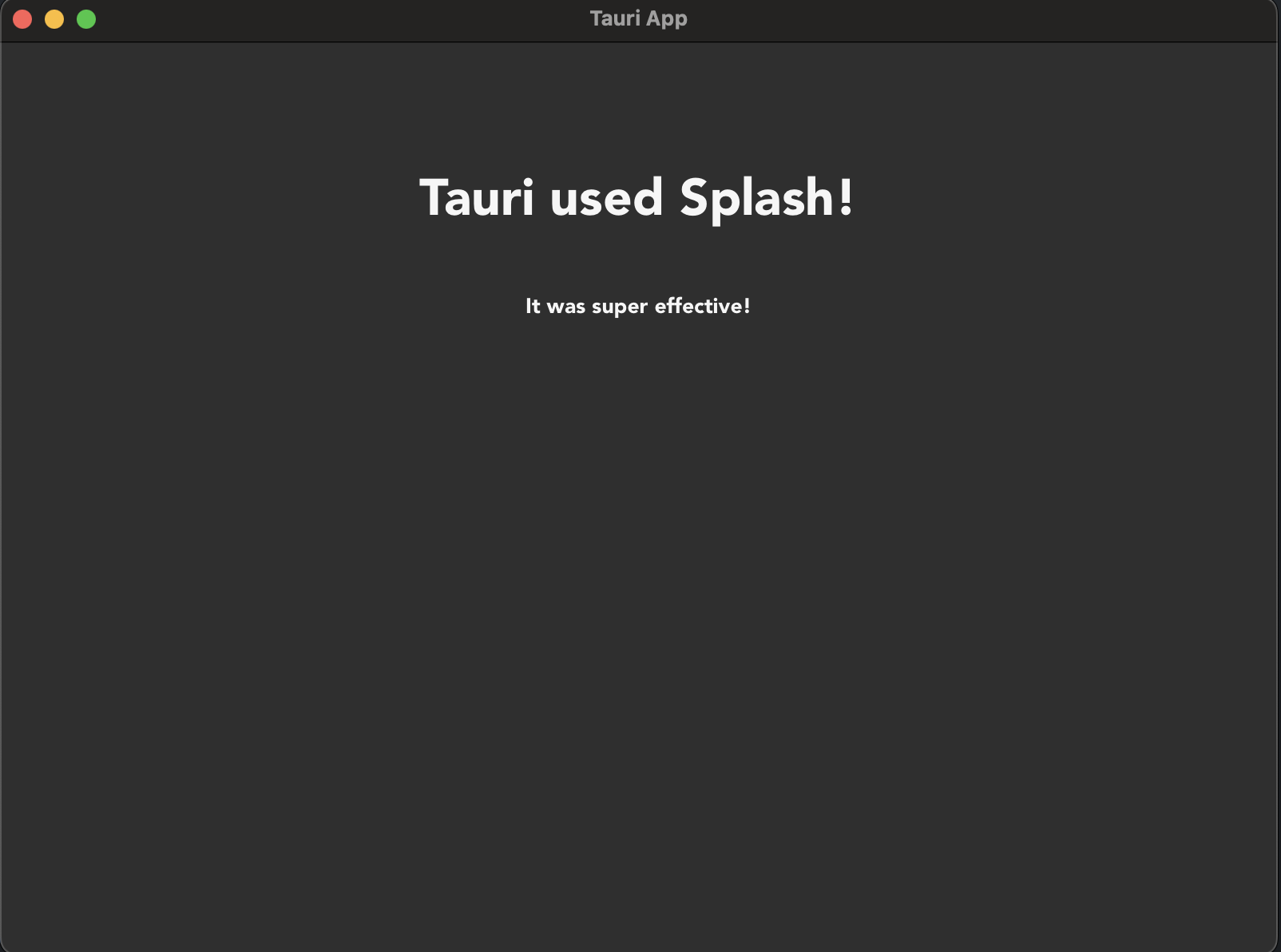
Start Some Setup Tasks
Section titled “Start Some Setup Tasks”Since splashscreens are generally intended to be used for the sake of hiding heavy setup related tasks, lets fake giving the app something heavy to do, some in the frontend and some in the backend.
To fake heavy setup in the frontend we’re going to be using a simple setTimeout function.
The easiest way to fake heavy operations in the backend is by using the Tokio crate, which is the Rust crate that Tauri uses in the backend to provide an asynchronous runtime. While Tauri provides the runtime there are various utilities that Tauri doesn’t re-export from it, so we’ll need to add the crate to our project in order to access them. This is a perfectly normal practice within the Rust ecosystem.
Don’t use std::thread::sleep in async functions, they run cooperatively in a concurrent environment not in parallel, meaning that if you sleep the thread instead of the Tokio task you’ll be locking all tasks scheduled to run on that thread from being executed, causing your app to freeze.
The backend code below keeps its builder chain in a configure function that run calls. The managed state and the setup hook go there, and set_complete is generic over the runtime, so the same code runs under the lab’s checks.
Add the Tokio crate by running the following command inside the src-tauri folder, where the Cargo.toml file is:
cargo add tokio@1 -F timetauri-plugin-opener = "2"serde = { version = "1", features = ["derive"] }serde_json = "1"tokio = { version = "1", features = ["time"] }
# Read the optimization guideline for more details: https://tauri.app/concept/size/#cargo-configuration }}
// Utility function to implement a sleep function in TypeScriptfunction sleep(seconds: number): Promise<void> { return new Promise((resolve) => setTimeout(resolve, seconds * 1000));}
// Setup functionasync function setup() { // Fake perform some really heavy setup task console.log("Performing really heavy frontend setup task..."); await sleep(3); console.log("Frontend setup task complete!"); // Set the frontend task as being completed invoke("set_complete", { task: "frontend" });}
window.addEventListener("DOMContentLoaded", () => { greetInputEl = document.querySelector("#greet-input"); greetMsgEl = document.querySelector("#greet-msg"); e.preventDefault(); greet(); }); setup();});// Import functionalities we'll be usinguse std::sync::Mutex;use tauri::async_runtime::spawn;use tauri::{AppHandle, Manager, State};use tokio::time::{sleep, Duration};
// Create a struct we'll use to track the completion of// setup related tasksstruct SetupState { frontend_task: bool, backend_task: bool,}
// Learn more about Tauri commands at https://tauri.app/develop/calling-rust/#[tauri::command]fn greet(name: &str) -> String { format!("Hello, {}! You've been greeted from Rust!", name)fn greet(name: String) -> String { format!("Hello {name} from Rust!")}
// A custom task for setting the state of a setup task#[tauri::command]async fn set_complete<R: tauri::Runtime>( app: AppHandle<R>, state: State<'_, Mutex<SetupState>>, task: String,) -> Result<(), ()> { // Lock the state without write access let mut state_lock = state.lock().unwrap(); match task.as_str() { "frontend" => state_lock.frontend_task = true, "backend" => state_lock.backend_task = true, _ => panic!("invalid task completed!"), } // Check if both tasks are completed if state_lock.backend_task && state_lock.frontend_task { // Setup is complete, we can close the splashscreen // and unhide the main window! let splash_window = app.get_webview_window("splashscreen").unwrap(); let main_window = app.get_webview_window("main").unwrap(); splash_window.close().unwrap(); main_window.show().unwrap(); } Ok(())}
// An async function that does some heavy setup taskasync fn setup<R: tauri::Runtime>(app: AppHandle<R>) -> Result<(), ()> { // Fake performing some heavy action for 3 seconds println!("Performing really heavy backend setup task..."); sleep(Duration::from_secs(3)).await; println!("Backend setup task completed!"); // Set the backend task as being completed // Commands can be ran as regular functions as long as you take // care of the input arguments yourself set_complete( app.clone(), app.state::<Mutex<SetupState>>(), "backend".to_string(), ) .await?; Ok(())}
pub fn configure<R: tauri::Runtime>(builder: tauri::Builder<R>) -> tauri::Builder<R> { // Don't write code before Tauri starts, write it in the // setup hook instead! builder .plugin(tauri_plugin_opener::init()) .invoke_handler(tauri::generate_handler![greet]) // Register a `State` to be managed by Tauri // We need write access to it so we wrap it in a `Mutex` .manage(Mutex::new(SetupState { frontend_task: false, backend_task: false, })) // Add a command we can use to check .invoke_handler(tauri::generate_handler![greet, set_complete]) // Use the setup hook to execute setup related tasks // Runs before the main loop, so no windows are yet created .setup(|app| { // Spawn setup as a non-blocking task so the windows can be // created and ran while it executes spawn(setup(app.handle().clone())); // The hook expects an Ok result Ok(()) })}
#[cfg_attr(mobile, tauri::mobile_entry_point)]pub fn run() { // Run the app configure(tauri::Builder::default()) .run(tauri::generate_context!()) .expect("error while running tauri application");Run the Application
Section titled “Run the Application”You should now see a splashscreen window pop up, both the frontend and backend will perform their respective heavy 3 second setup tasks, after which the splashscreen disappears and the main window is shown!
Discuss
Section titled “Discuss”Should you have a splashscreen?
Section titled “Should you have a splashscreen?”In general having a splashscreen is an admittance of defeat that you couldn’t make your app load fast enough to not need one. In fact it tends to be better to just go straight to a main window that then shows some little spinner somewhere in a corner informing the user there’s still setup tasks happening in the background.
However, with that said, it can be a stylistic choice that you want to have a splashscreen, or you might have some very particular requirement that makes it impossible to start the app until some tasks are performed. It’s definitely not wrong to have a splashscreen, it just tends to not be necessary and can make users feel like the app isn’t very well optimized.
© 2026 Tauri Contributors. CC-BY / MIT